

A Windows computer
Windows 10 or 11, 64-bit. A card reader or a USB port for cards and sticks, and an internet connection if you send shows over the internet.
IMD Signage Studio · free Windows app
Free digital signage software for Windows, with no subscription and no account. It is made for the people who run the shop, the restaurant or the front desk: answer three questions, type your own words over ours, and put the show on your screen with a memory card, a USB stick or over the internet.
Download for Windows (6.0 MB)Install notes and help
Not code-signed yet: Windows may warn you the first time it runs. What to click.
The app
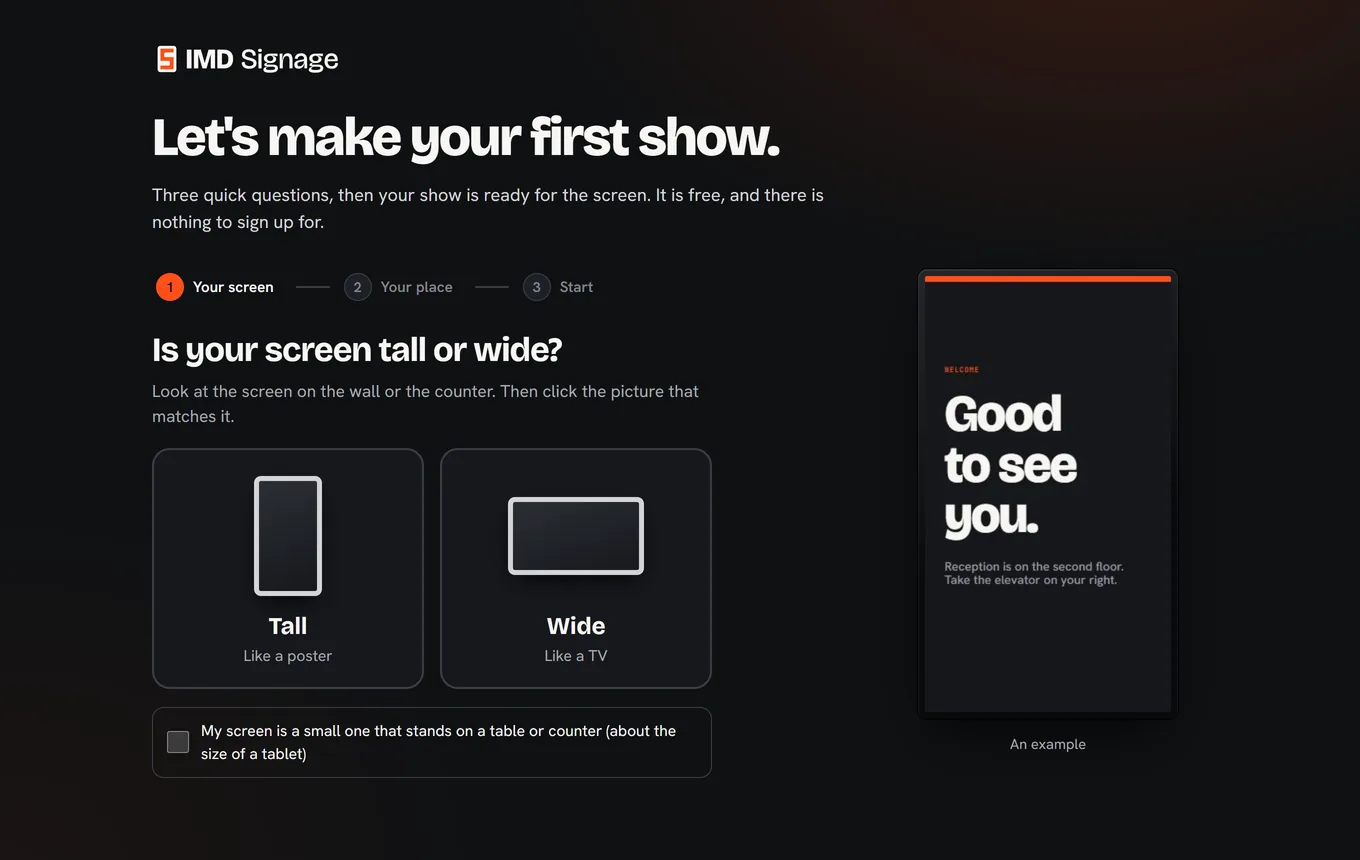
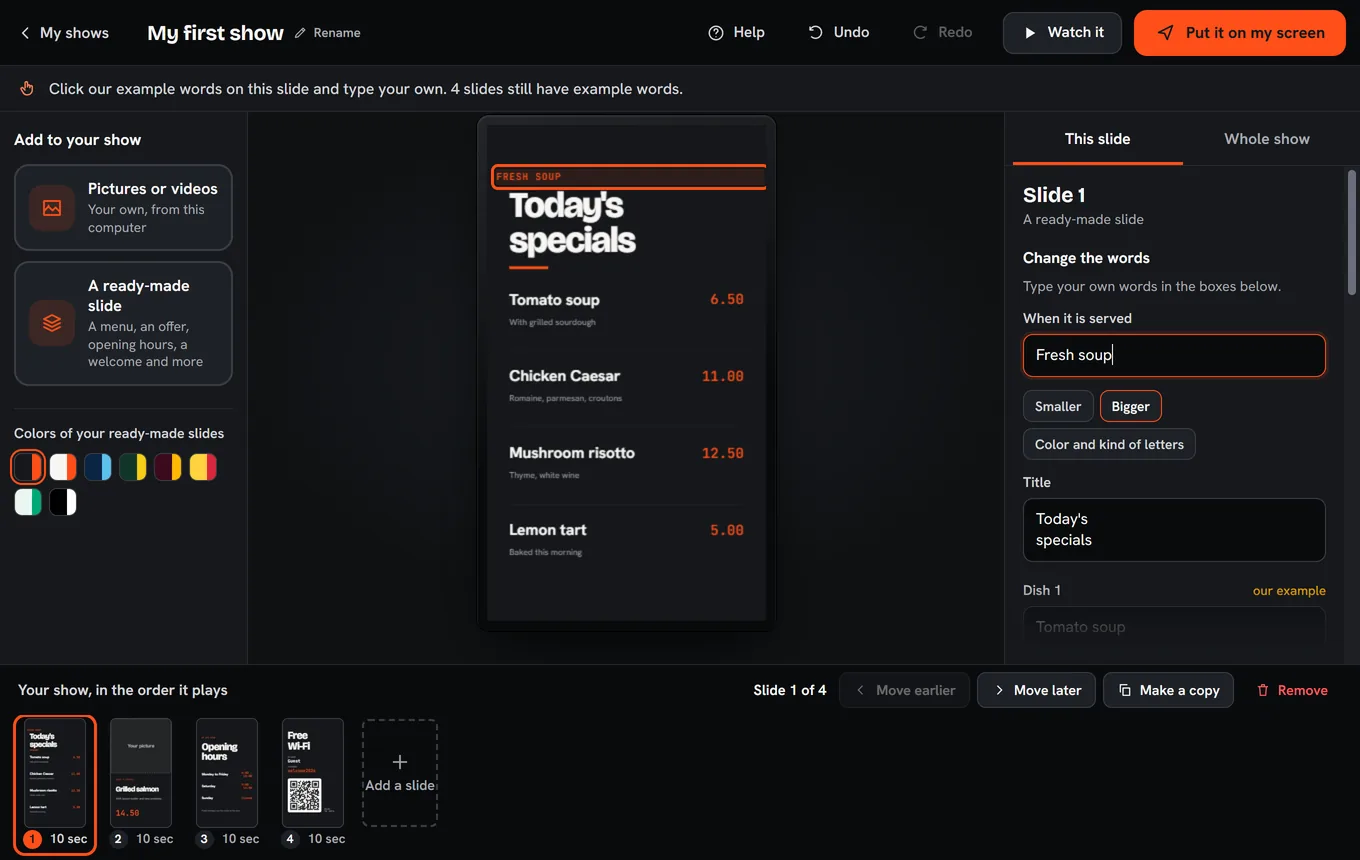
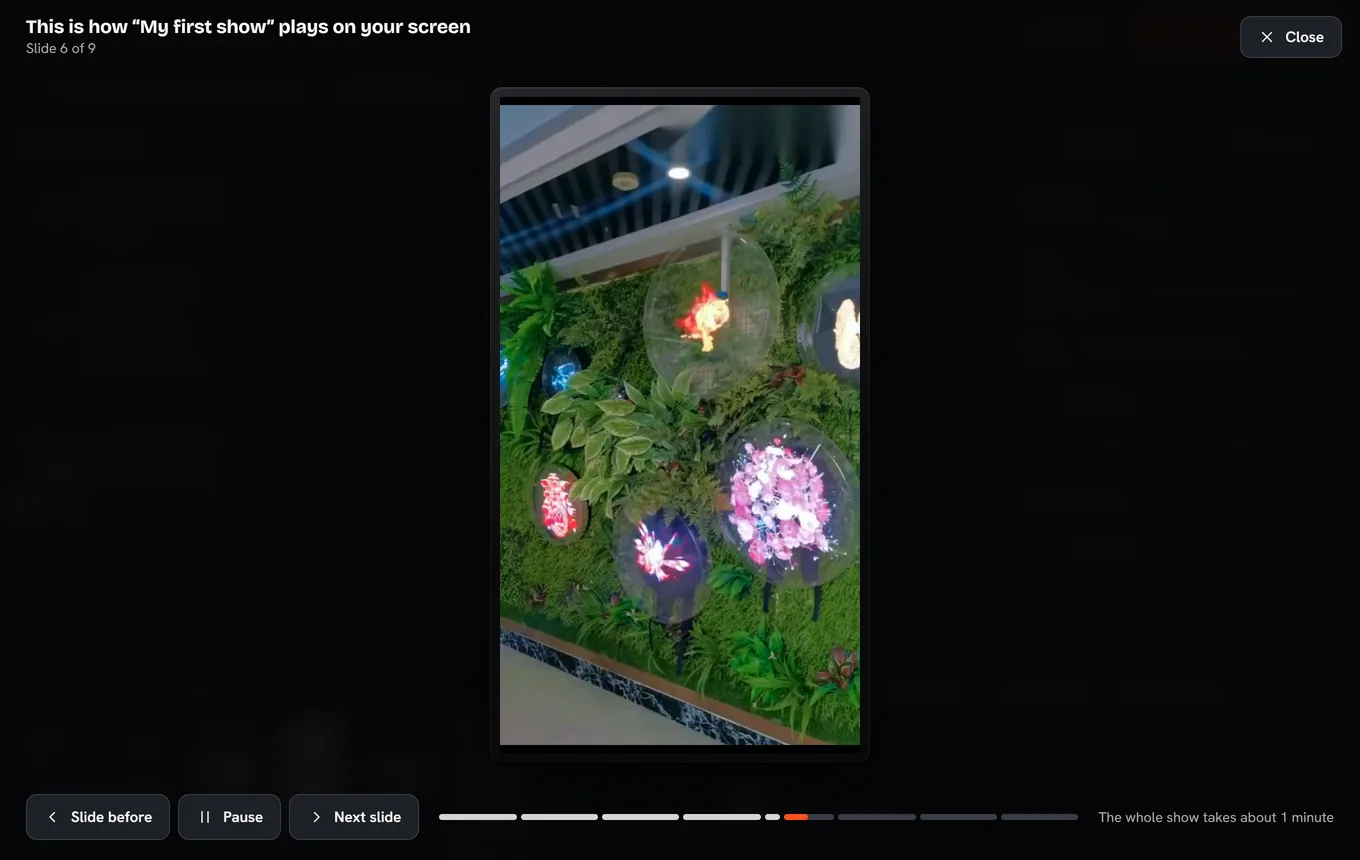
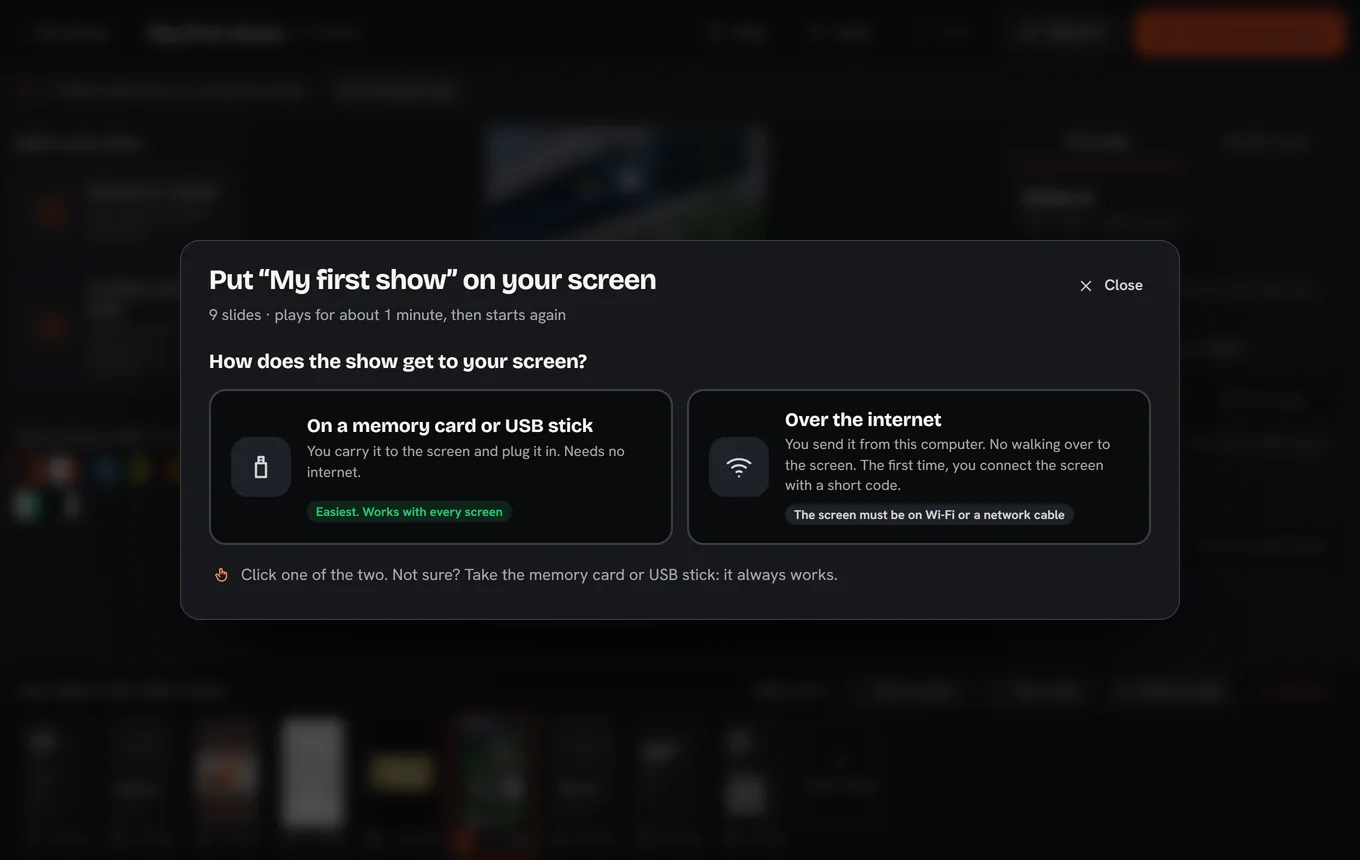
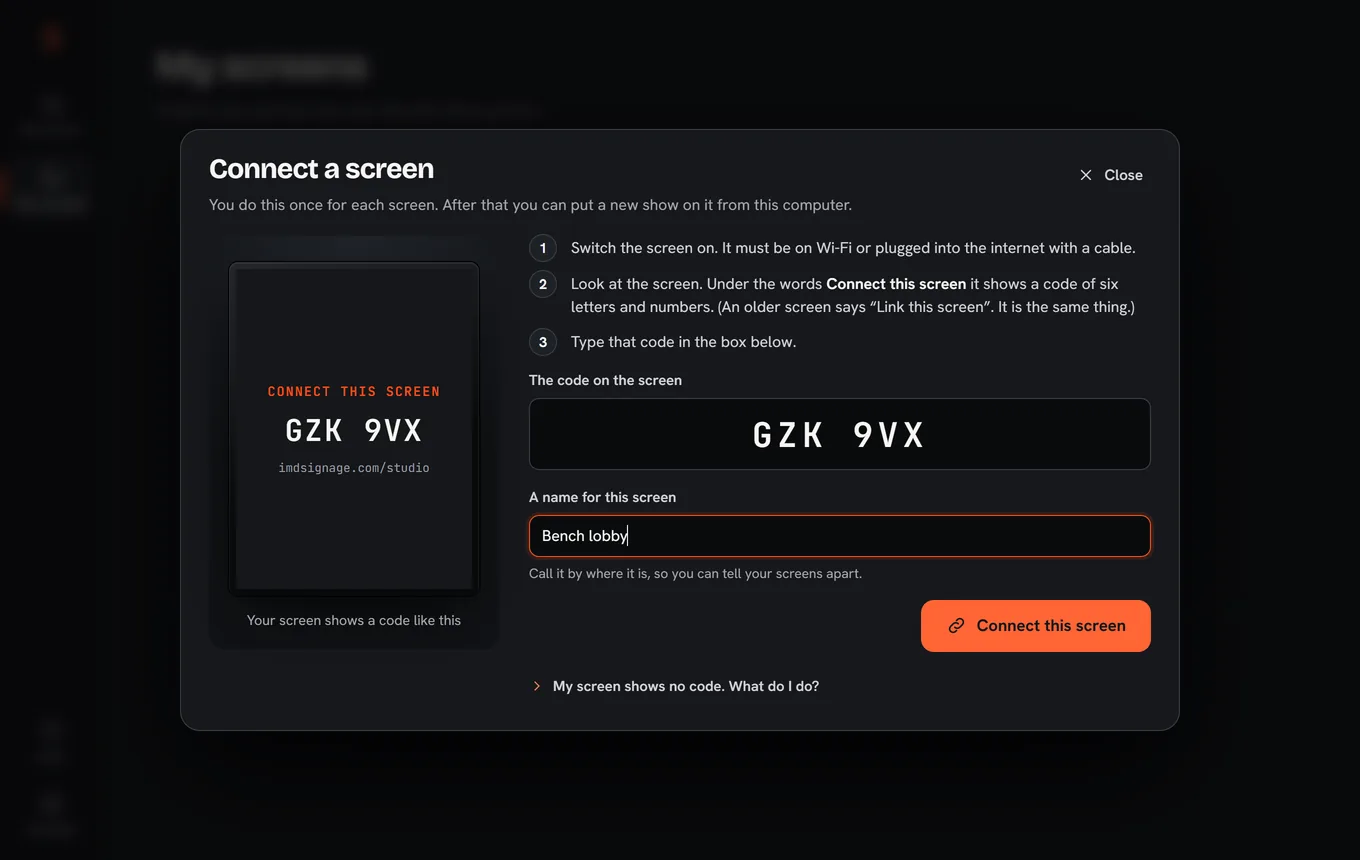
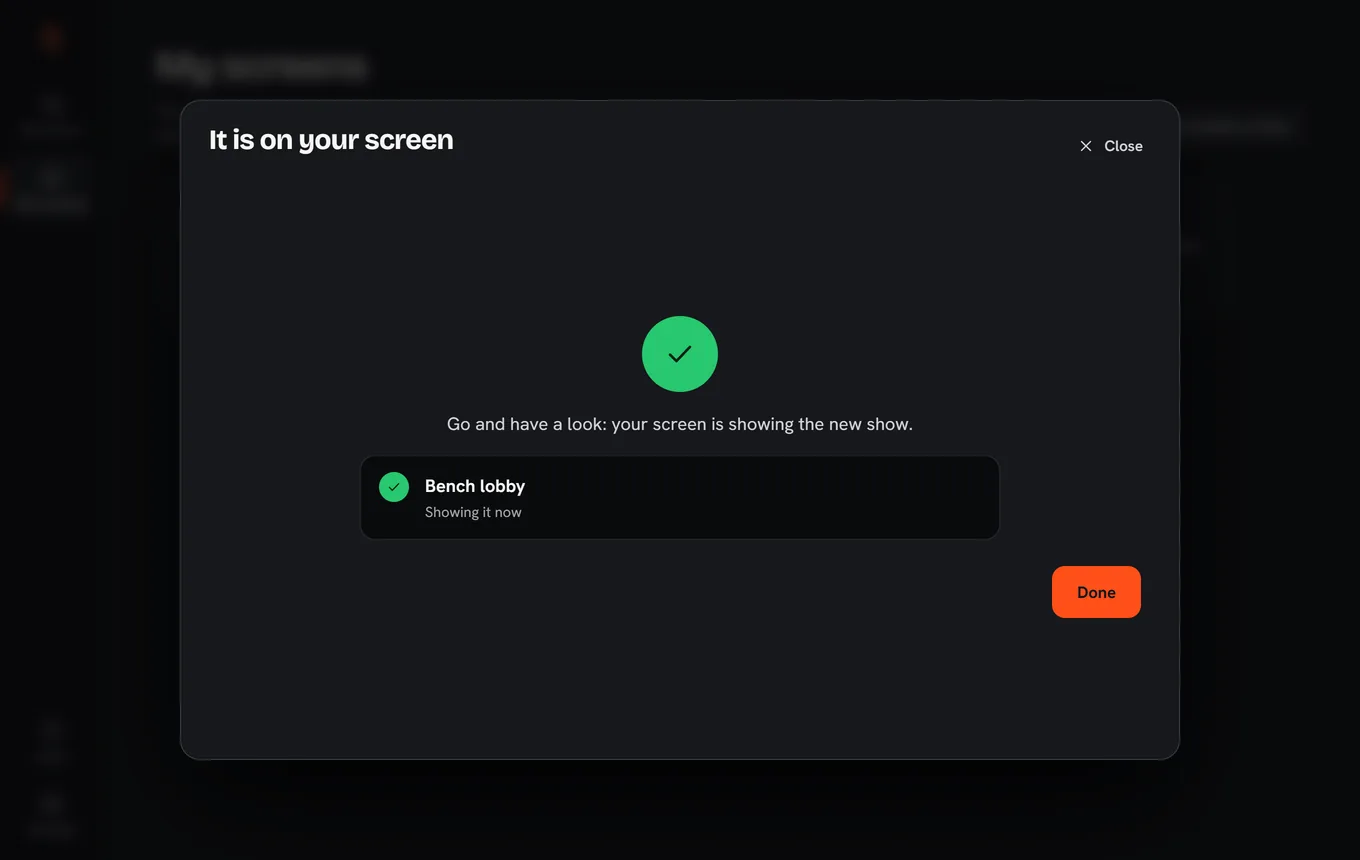
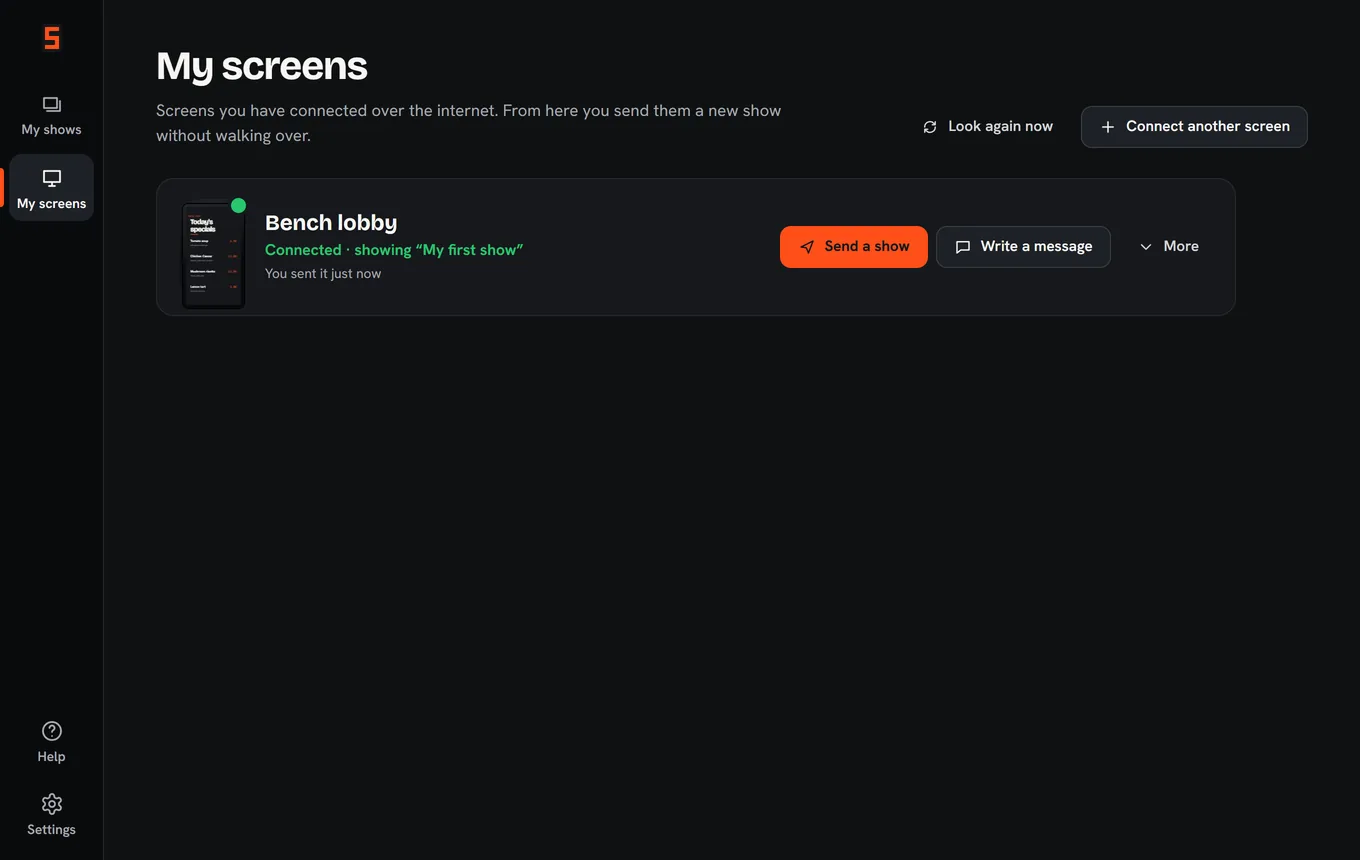
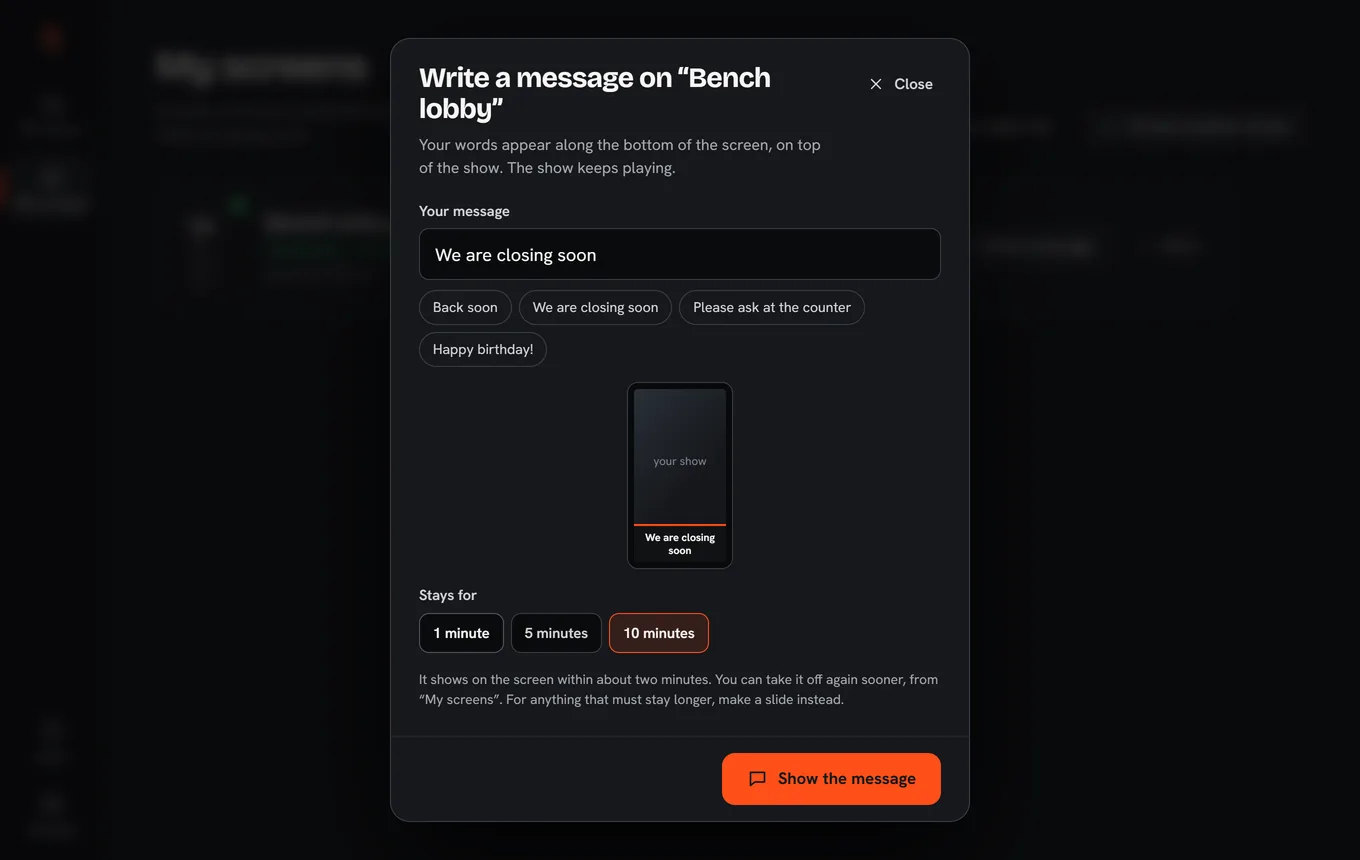
Screenshots of IMD Signage Studio 1.2.4 on Windows. The slides in them are sample artwork.
Three steps
Studio keeps your shows on your computer. A show is the set of slides a screen plays, over and over; make as many as you like.
Answer three questions: is the screen tall or wide, where is it, and do you start from ready-made slides or your own pictures. Ready-made slides cover a menu, an offer, opening hours, a welcome, a guest Wi-Fi code and more; you type your own words over the examples.
"Watch it" plays the show the way the screen will: the same order, the same timings, the same fade between slides.
Copy it onto a memory card or USB stick and carry it to the screen, or send it over the internet to the screens you have connected.
Two ways to the screen
The same show goes either way. A card needs nothing at the screen but a slot. The internet lets you change the screen from your desk, within the free service's limits.
| Question | Memory card or USB stick | Over the internet |
|---|---|---|
| Network at the screen | None needed | Wi-Fi or a network cable |
| How the show gets there | You carry the card or stick and put it in | Studio sends it; the screen fetches it by itself |
| How fast | The new show starts within a few seconds of the card going in | Each screen looks for a new show every 2 minutes |
| Checking | Every file is read back from the card and checked, and the card is made safe to take out | Studio says "Showing it now" when each screen has the new show |
| Limits | None of the online limits: the card's free space is the limit | 25 screens, 200 MB of files in all, one file up to 25 MB |
| Several screens | Carry the card to each screen in turn | Choose the screens you want and send once |
| Going back | Copy the older show onto the card again | "Put back" on a screen sends the show it had before |
| A short message on the screen | Not on a card | "Write a message" puts a line of words along the bottom of the screen for 1, 5 or 10 minutes, and you can take it off sooner |
| Player needed | IMD Signage Player | IMD Signage Player 1.1.0 or newer |
A screen that is connected over the internet still plays a card while the card is in, and goes back to its internet show when the card comes out.
What you need
Windows 10 or 11, 64-bit. A card reader or a USB port for cards and sticks, and an internet connection if you send shows over the internet.
Studio makes shows for our screens, tall or wide. See the IMD Signage displays.
The free player on the screen plays the show. Connecting a screen over the internet needs IMD Signage Player 1.1.0 or newer.
Help
Download the installer (6.0 MB) and open it. It installs for your own Windows user. It needs Windows 10 or 11, 64-bit. Studio uses the Microsoft WebView2 component that Windows 11 already has; on a computer without it, the installer downloads it, so that first install needs the internet.
The installer is not code-signed yet, so Windows SmartScreen shows this warning the first time it runs. Click More info, then Run anyway. To be sure the file is ours, compare its fingerprint before you run it: in PowerShell, Get-FileHash followed by the file name prints a SHA-256 that must match 73cc110cba7e334aaf1dc0ba9114e9196da59970b78de5ecc2bd0b56403d18ed, the value in the .sha256 file.
Connect the screen to Wi-Fi or a network cable. With nothing to play, IMD Signage Player shows Connect this screen and a code of six letters and numbers (Player 1.1.0 says "Link this screen"; it is the same thing). In Studio, open My screens, press Connect a screen, type the code and give the screen a name such as Window or Counter. A code is replaced after a day, so type the one the screen shows now.
A screen that is busy playing shows no code. Tap the top left corner of the screen five times quickly (with a remote, hold the Back button for three seconds), type the staff code and choose Connect to IMD Signage Studio ("Link to IMD Signage Studio" on Player 1.1.0). An older player has no such choice: put Player 1.1.0 or newer on the screen from the player page first. Or, in Connect a screen, open My screen shows no code. What do I do? and choose Make a connect card instead: Studio writes a small connect card onto a memory card or USB stick. Put it into the screen once, with the network connected, wait a minute, then take it out. The connect card holds no pictures. A screen with no network at all cannot be connected; put its show on a card instead.
Plug a microSD card (in a reader) or a USB stick into the computer. Studio notices it and offers to copy your show onto it. Or press Put it on my screen and choose On a memory card or USB stick. Studio copies the show, reads every file back to check it, and makes the card safe to take out. If a ready-made slide still has our example words, Studio asks you to have a look first. Put the card into the screen and the new show starts within a few seconds; after a minute you can take it out or leave it in. Use a card the way it comes from the store (FAT32 or exFAT); many screens cannot read a card set up as NTFS, and Studio warns you about one. Nothing else on the card is erased except an older show. Under More options you can also save the show as a folder named IMD_SIGNAGE and copy it to a card yourself.
Yes, on a screen connected over the internet. Open My screens and press Write a message. Type a few words such as "Back soon" and choose 1, 5 or 10 minutes. The words appear along the bottom of the screen within about two minutes, on top of the show, and go away by themselves. Changed your mind? Take the message off, on the same page, removes them sooner (with Player 1.1.2 the words simply go; an older player shows the name of the screen for three seconds as they go). For anything that should stay longer, make a slide.
The screen keeps playing the show it holds. A screen that is not connected when you send a show gets it as soon as it is connected again. If our online service cannot be reached, screens keep playing what they have. A card works with no network at all, and a connected screen plays a card while it is in, then goes back to its internet show when the card comes out.
Your screens belong to a private key that Studio makes the first time you connect a screen. On the old computer open Settings, then Moving to another computer, and copy The key to your screens. On the new computer open the same place, choose Use a key from another computer and paste it: the new computer then manages the same screens. Whoever holds the key can change what your screens show, so keep it somewhere safe. Your shows are kept on the computer itself: Settings shows where. Copy that folder to take your shows along or to back them up.
Pictures: JPG, PNG, WebP, GIF, BMP and AVIF. Video: MP4, M4V, MOV, WebM, MKV, AVI and WMV. PDF: each page becomes a slide, up to 200 pages. PowerPoint, Keynote and Word files: save or export them as PDF first. iPhone HEIC photos: save them as JPG first. Studio turns each picture slide into a JPEG at the screen's exact size. A video the screen cannot play is converted on the computer to H.264 MP4, at most Full HD and 30 frames a second. Over the internet one file may be up to 25 MB, so shorten a long video or put that show on a card, where there is no limit.
Studio looks for a newer version by itself a few seconds after it starts. When one is ready, an Update button appears; installing takes a few seconds, Studio restarts by itself and your shows stay as they are. You can also look from Settings, Look for a newer version.
Open Windows Settings, then Apps, find IMD Signage Studio and choose Uninstall. If you want to keep your shows, copy the folder shown in Studio's Settings first, and keep a copy of the key to your screens. Screens that already play a show keep playing it.
Write to [email protected] and say which screen and which version of Studio you have. More about the screens themselves is on the questions page.